
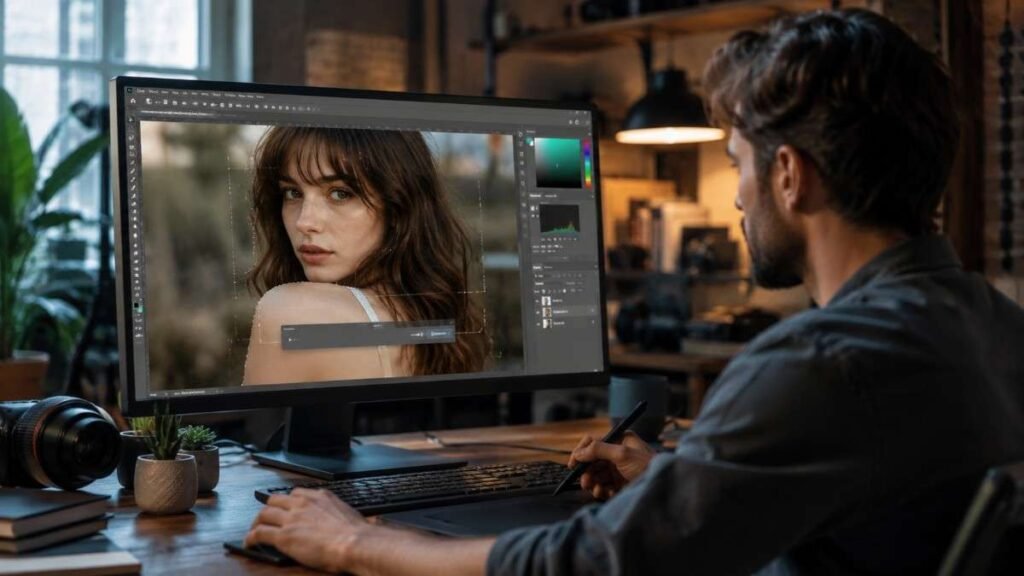
Late-night editing sessions used to involve endless cloning, masking, and background cleanup that could easily eat up hours. After using generative fill Photoshop across portrait edits, product photography, and social media creatives, the editing process became dramatically faster and smoother.
Simple text prompts can now remove distractions, extend backgrounds, and create realistic visual elements while preserving lighting, texture, and overall image quality in just a few seconds.
Key Takeaways
- Generative Fill speeds up advanced Photoshop editing workflows
- Adobe Firefly AI creates realistic edits using simple text prompts
- Better prompts improve image quality and consistency
- Generative Expand helps resize images for modern content formats
- Non-destructive AI layers keep original photos safe during editing
Why Generative Fill Photoshop Is Changing Editing?
AI-powered editing is quickly becoming essential for photographers, designers, and content creators.
Photoshop Generative Fill, powered by Adobe Firefly, uses artificial intelligence to add, remove, replace, or expand image content naturally. The tool understands perspective, shadows, textures, and lighting, which makes edits look far more realistic than traditional content-aware methods.
For photo editors working on client projects, ecommerce visuals, YouTube thumbnails, or branded content, this feature reduces editing time while improving creative flexibility.
AI Editing Feels More Natural
Older editing techniques often required advanced retouching skills to blend objects seamlessly. Generative Fill automatically analyzes the surrounding image and generates realistic content that matches the existing scene. This creates cleaner edits with fewer visible flaws or repetitive textures.
Perfect For Modern Content Creation
Content creators constantly resize visuals for different platforms. Generative Expand allows editors to extend backgrounds for Instagram Reels, Pinterest graphics, YouTube banners, and website hero images without awkward cropping or stretching.
Faster Workflow For Professionals
Professional photographers and agencies benefit from faster turnaround times. Removing unwanted objects, color grading, cleaning distractions, and creating alternate compositions can now happen in minutes instead of hours, which improves productivity significantly.
Key Features Of Generative Fill Photoshop
Adobe continues improving Photoshop AI tools with every update. The latest model delivers sharper edges, higher resolution generation up to 2K, and cleaner texture blending that solves many earlier pixelation issues.
Generate Objects Instantly
This feature allows users to create entirely new objects inside an image using text prompts. Editors can type phrases like “coffee mug,” “studio lighting,” or “mountain background” to generate realistic additions that blend naturally into the composition.
Remove Objects Seamlessly
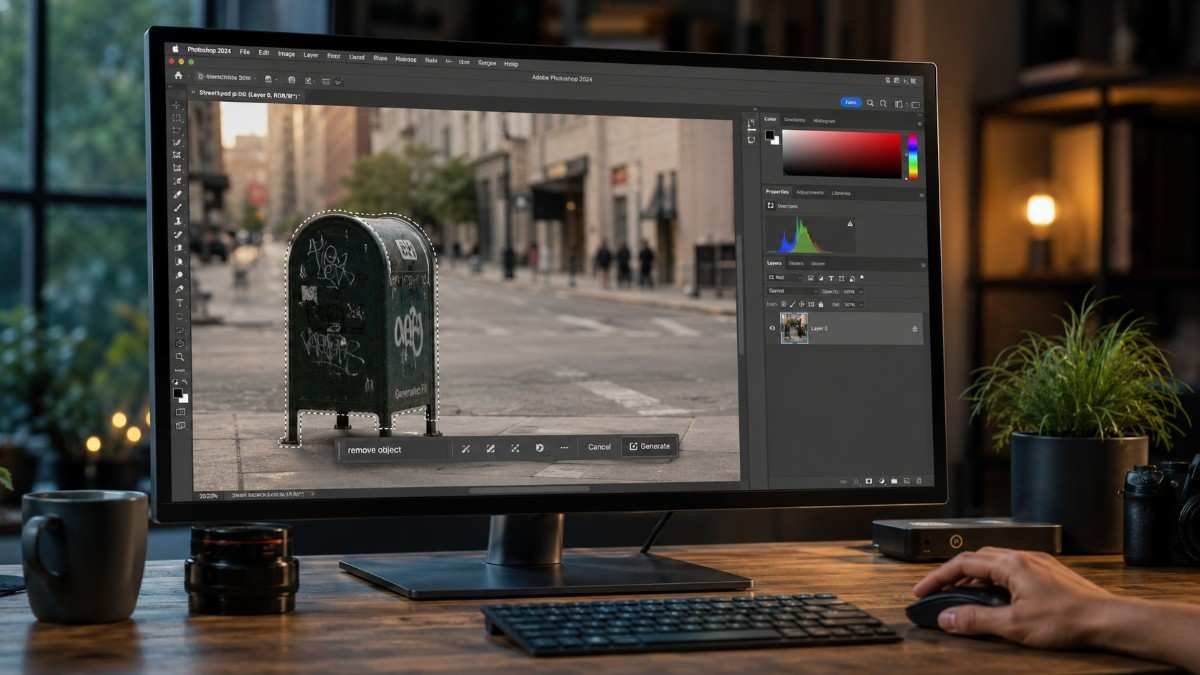
Generative Fill can intelligently remove people, cables, signs, reflections, or distracting objects. Leaving the prompt field blank tells Photoshop to automatically rebuild the selected area using nearby visual information for a cleaner result.
Expand Images Creatively
Generative Expand is one of the most useful tools for modern creators. Using the Crop Tool, editors can increase canvas size and allow AI to generate realistic background extensions that match the original image style and perspective.
How To Use Generative Fill Photoshop
Getting started with generative fill Photoshop is surprisingly simple for beginners and professionals alike. The feature works directly inside Photoshop through the Contextual Taskbar, making the workflow fast and intuitive.
Select The Editing Area
Start by choosing a selection tool like the Lasso Tool, Marquee Tool, or Object Selection Tool. Highlight the area you want to edit, replace, remove, or extend. Slightly expanding the selection often helps Photoshop blend the generated content more naturally into the scene.
Open The Generative Fill Tool
After making a selection, the Contextual Taskbar appears automatically near the selected area. Click the Generative Fill button to open the text prompt field. Users can either type a descriptive prompt or leave the box blank for automatic object removal.
Generate And Refine Results
Click Generate to create multiple AI-generated variations. The Properties panel displays several versions, allowing editors to choose the best match for lighting, perspective, and composition. Additional generations can improve realism further.
Smart Prompt Tips For Better Results
Most creators underestimate how much prompt quality affects AI-generated edits. Using clear and natural prompts usually produces more realistic Photoshop results.
Keep Prompts Short
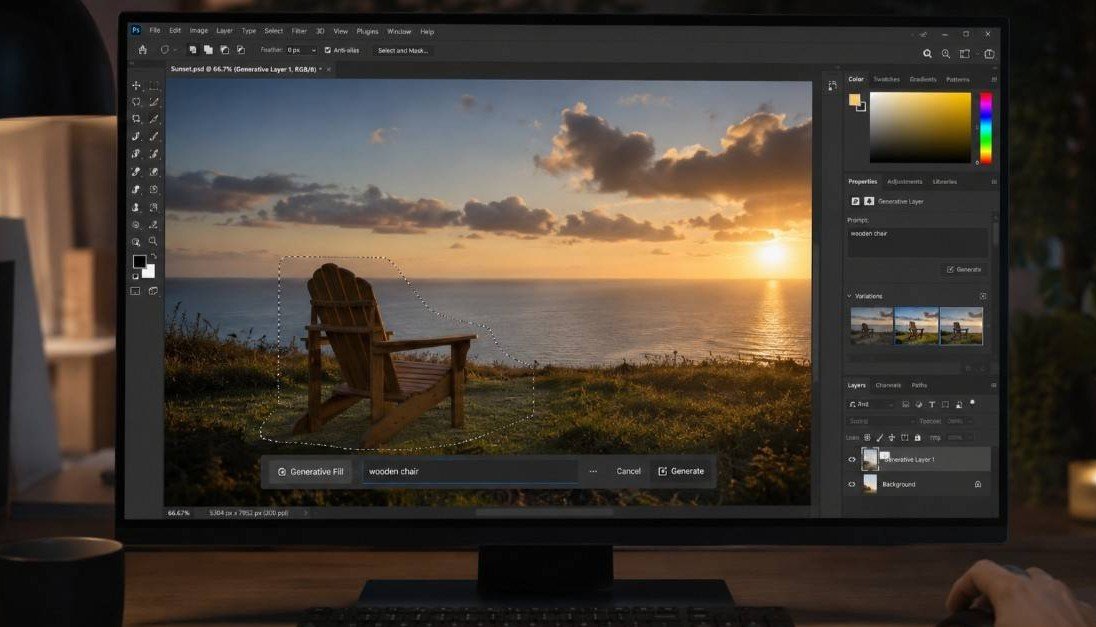
Simple prompts often work better than complicated descriptions. Phrases like “wooden chair,” “soft clouds,” or “cinematic sunlight” help Photoshop focus on generating cleaner and more accurate visual elements.
Match Existing Lighting
Generative Fill performs best when prompts align with the image’s original lighting direction and mood. Bright daylight prompts inside dark studio images may create unrealistic results that require additional retouching.
Edit In Smaller Sections
Large edits sometimes confuse the AI model and reduce consistency. Breaking complex edits into smaller selections improves texture accuracy and helps maintain more natural transitions throughout the image.
Best Uses For Generative Fill Photoshop
This tool is especially powerful for creators working in the photo editing niche. Portrait photographers, ecommerce editors, and social media managers can streamline repetitive editing tasks while improving visual quality.
Portrait Retouching
Background cleanup becomes much easier with AI-assisted editing. Editors can remove unwanted people, wall stains, trash bins, or distractions while maintaining realistic lighting and skin tones throughout the portrait.
Ecommerce Product Photography
Generative Fill helps create polished commercial visuals without expensive studio setups. Editors can extend backdrops, add props, improve compositions, and generate clean environments that enhance product presentation.
Marketing And Social Media
Marketing teams benefit from faster content creation workflows. AI-powered editing helps resize visuals, generate campaign assets, and create platform-specific content variations quickly for ads, banners, and social posts.
Common Problems And Fixes
Even advanced AI editing tools still have limitations. Understanding common issues helps editors achieve better results faster.
Why Does Generative Fill Look Weird?
Unrealistic outputs usually happen because selections are too large or prompts are overly detailed. Smaller selections and simpler prompts generally improve consistency and realism.
Why Generative Fill Is Disabled?
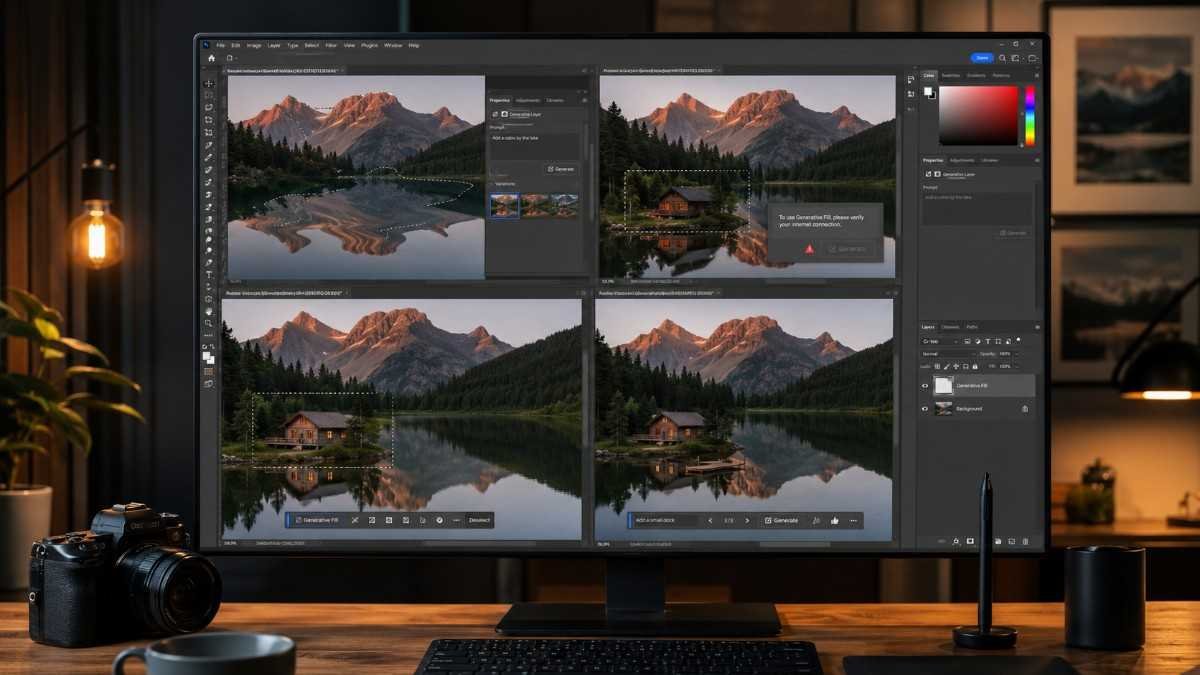
The feature may be unavailable because of outdated Photoshop versions, missing internet access, unsupported regions, or inactive Adobe subscriptions. An active internet connection is required because the AI generation process runs through Adobe Firefly servers.
Why The Fill Tool Is Missing?
Users sometimes cannot see the feature because the Contextual Taskbar is disabled. Enabling the taskbar from the Window menu usually restores access to Generative Fill immediately.
Frequently Asked Questions
1. How do I get to generative fill in Photoshop?
Make a selection using any selection tool, then click Generative Fill in the Contextual Taskbar that appears automatically inside Photoshop.
2. Why is generative fill disabled?
The feature may be disabled because of outdated software, inactive licensing, unsupported regions, or missing internet connectivity.
3. Why can’t I see the fill tool in Photoshop?
Enable the Contextual Taskbar from the Window menu and ensure Photoshop is updated to the latest version.
4. What is generative fill used for?
Generative Fill is used to remove objects, create AI-generated elements, extend backgrounds, and speed up professional photo editing workflows.
Final Frame Magic With Generative Fill Photoshop
Modern editing workflows demand speed, creativity, and flexibility, and generative fill Photoshop delivers all three exceptionally well. From advanced retouching to ecommerce photography and social media content creation, Adobe Firefly AI makes complex edits easier and more accessible. Combining smart prompting with traditional editing skills helps creators produce cleaner, faster, and more professional-looking visuals while saving valuable editing time.